
Introduction
I’m sure you heard that many data breaches are caused by having public access to database backups. While having controlled access is always the goal, you can mitigate data leaks by simply encrypting your SQL Server database backups.
Whether you need it or not, whether you have deep knowledge in cryptography or not, the following blog will take you on a simple path of adding encryption to all of your database backups. The following blog will take you from current “no, encryption” to “yes, encryption”.
Problem
How do you add database backup encryption to all your existing database backup infrastructure, or more importantly, add that feature without breaking anything?
If you are already using Ola Hallengren’s maintenance solution, you already have half a solution there. All you need is to add a few security pieces and “ask” Ola Hallengren’s maintenance solution to take advantage of that.
Solution
Some background on the tools that we are going to be using: certificates and keys.
In SQL Server 2022 (16.x), certificates with private keys can be backed up or restored directly to and from files or binary blobs using the public key pairs (PKCS) #12 or personal information exchange (PFX) format. All system-generated certificates have a minimum strength of RSA-3072 in SQL Server 2022 (16.x).
The PKCS #12 or PFX format is a binary format for storing the server certificate, any intermediate certificates, and the private key in one file. PFX files usually have extensions such as .pfx and .p12. This makes it easier for customers to adhere to the current security best practice guidelines and compliance standards that prohibit RC4 encryption by eliminating the need to use conversion tools such as PVKConverter (for the PVK or DER format).
A certificate is a database-level securable that follows the X.509 standard and supports X.509 V1 fields. CREATE CERTIFICATE can load a certificate from a file, a binary constant, or an assembly. This statement can also generate a key pair and create a self-signed certificate.
Let’s move on to the implementation phase.
1. Prerequisites
1.1 Create Master Key
1.2 Backup Master Key
1.3 Create Certificate Key
1.4 Backup Certificate Key
1.5 Upload the following 3 files + password to your Password Keeper
1.6 Enable backup encryption in maintenance.full_backup procedure
1.1-1.4 Master Key, Create Master Key, Backup Master Key, Create Certificate, Backup Certificate
https://github.com/steverezhener/DBA/blob/master/Certificates/database-backup-encryption.sql
1.5 Upload the following 3 files + password into Password Keeper
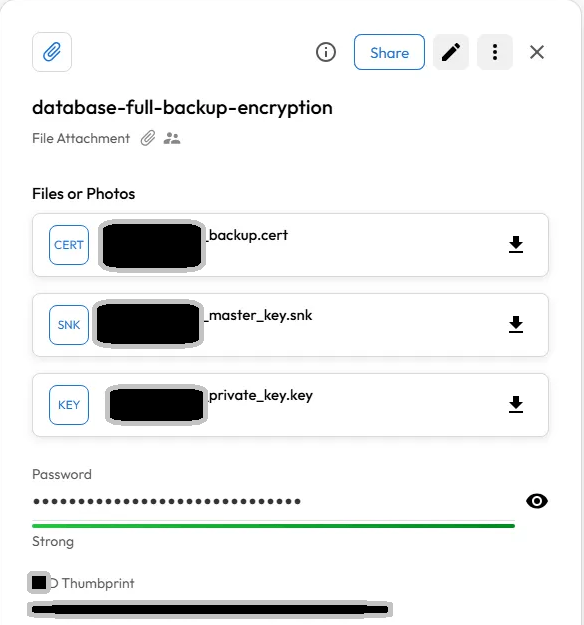
1.6 Enable Backup encryption
Backup databases with encryption (enable_backup_encryption param should be set to Y)

SELECT [SettingValue] from DBA.[Maintenance].[Configuration] where 1=1 AND SettingName='Backup_Cert’
2. Backup
A regular Saturday full database backup would do it as long as @enabled_backup_encryption=’Y’, Backup_Cert name is in the configuration table, and that certificate exists/has the same thumbprint

3. Restore
2.1 Restore the encrypted database backup on the same server
No different than a regular non-encrypted database restore
2.2 Restore the encrypted database backup to a different server
Restoring an encrypted database on a different server involves cloning the master key and certificate, or you will get the following thumbprint error
Without an identical certificate on a new server, you will be greeted with the following error message – thumbprints do not match
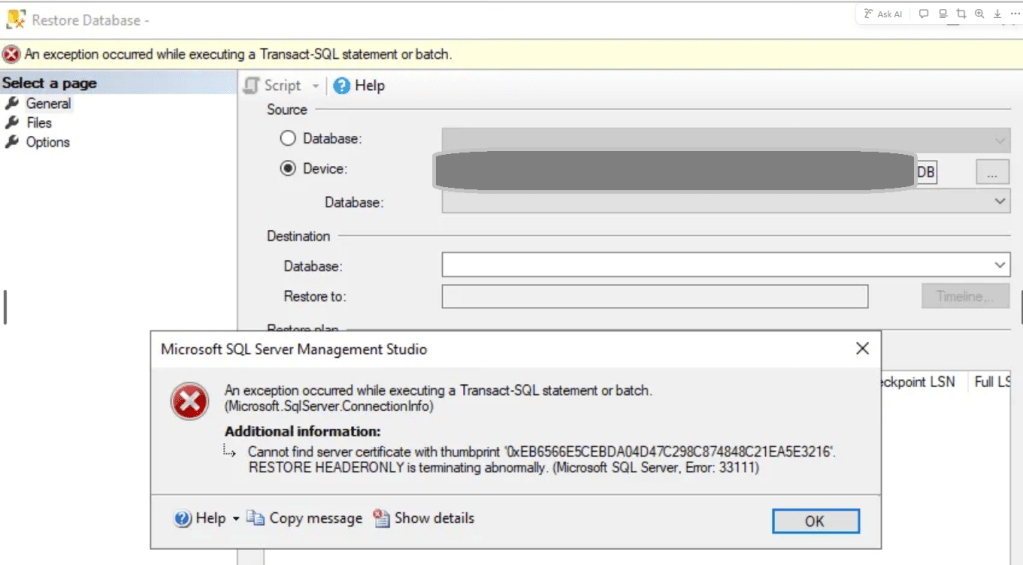
select thumbprint from master.sys.certificates where name=’Backup_Cert’
2.3 Download all the database-backup-encryption files
2.4 Restore database certificate
https://github.com/steverezhener/DBA/blob/master/Certificates/import-database-backup-certificate.sql
Disclaimer
This blog post was made possible using the following resources:
 DataSteve